|
Child Level:
| |
InRoads Superelevation (AASHTO method)
Hot Links
Videos
Let's assume you're matching slope for some existing superelevated road.
Or that you've gone through the trouble of calculating outside of InRoads.
You need to match the InRoads super transition stations with those you've
calculated.
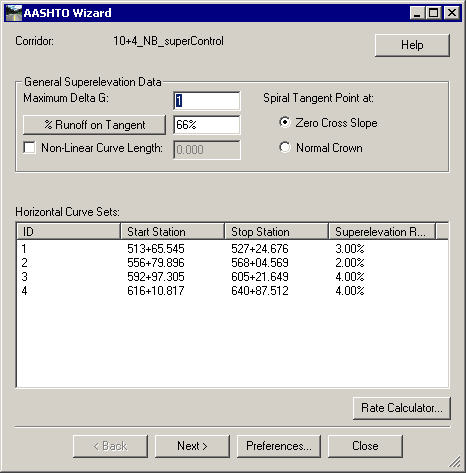
If you're using the Superelevation Wizard, AASHTO Method,
| Superelevation calcs begin with the Horizontal
Alignment's Cardinal Points and each curves Maximum Rate. Transition
template station calculations continue with % of the Transition length
that occurs on the Tangent (and how much occurs on the Curve itself).
The "Spiral Tangent Point" radio button must be set to the
appropriate value of Zero Cross Slope or Normal Crown.
In a later form, you can adjust or key in the Transition Length and
the Starting and Stopping Transition Station, all of which are based on
the %Runoff on Tangent and Tangent Point values.
For example, if you have stations (and lengths) calculated for Normal
Crown, use that option; if your calcs are for Zero Cross Slope, use
that.
|
 |
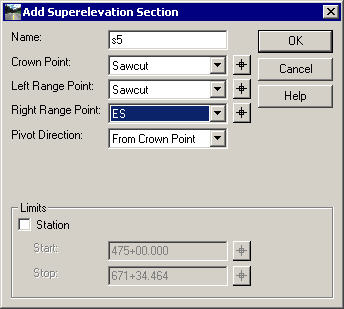
| InRoads calculates superelevation widths and creates
Superelevation Control lines from user-added information in the Add
Superelevation Section form. |
 |
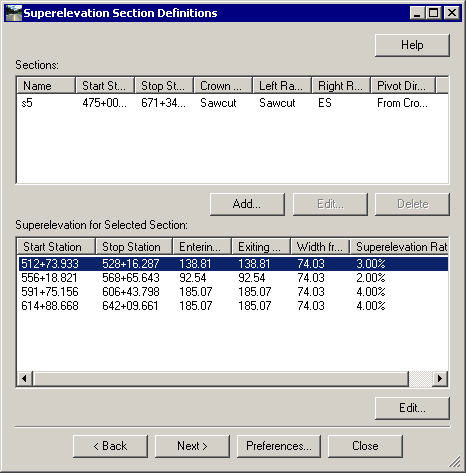
| Once InRoads knows the widths of the superelevating
sections it can calculate the Transition Lengths (how is still a
mystery to me). The lower listbox lists the calculated start and stops
of transition as well as the lengths. These values can be edited
by selecting a curve and hitting the "Edit" button. |
 |
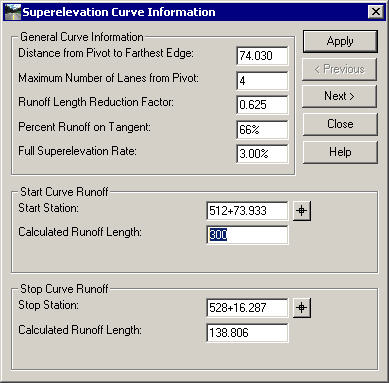
Tweaking Curve Set Information
| For new alignments changing the runoff
lengths should adjust the transition stations appropriately. If
your InRoads-calculated Cardinal Points don't match your hand-calculated
stations, you'll have to adjust the Runoff Lengths first and then key in
the new start and stop stations (changes to Lengths recalculate stations
from the InRoads-calculated PC or PT).
|
 |
An advantage of defining superelevation tables this way is that InRoads
creates Superelevation Control Lines for all the (independent) template points,
with appropriate dependencies. For example if you have a Shoulder at 5%,
it will create a Shoulder Superelevation Control Line that is linked to the ETW
Control Line.
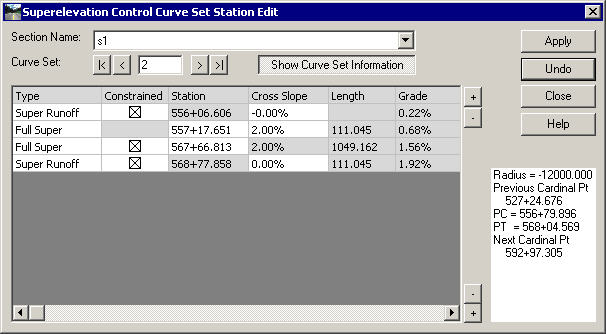
| Right-clicking in the superelevation edit window allows you to
select "Edit Curve Set Stations". This is a really handy way to get
your stations precise, without having to worry about dependencies (it
takes care of them for you). |
 |
|