|
Child Level:
| |
Workflows: Precise Horizontal Geometry Techniques
InRoads Workflow Library
Merging Ramps - Horizontal
It is far easier to use the Horizontal [and Vertical] Element tools to meet
complex geometric requirements than to use the Horizontal [and Vertical] Add PI
tools.
For example, for Off Ramp Departure Angle from a curve (as per CT HDM 504.2):
- Create a new ramp alignment.
- Create the starting curve, matching the radius (the following
doesn't require knowing it)
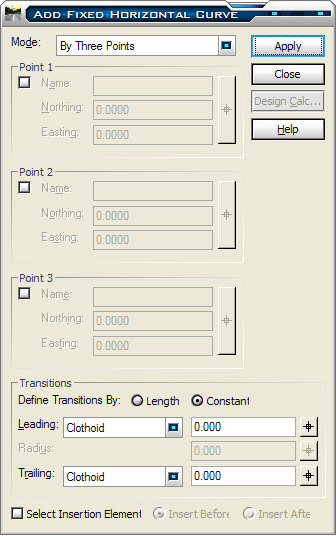
- Select InRoads>Geometry>Horizontal Element>Add Fixed Curve.
- Select "By Three Points" Mode.
- Hit Apply and follow the prompts.
- For Point 1, Snap to the ramp starting position.
- For Point 2, Snap to some point on the curve.
- For Point 3, Snap to another point on the curve.
- Accept the solution.
- Reset to exit the prompt loop.
- Close the form.
|
 |
| This gets you a curve starting at the nose, matching the
radius.
|
 |
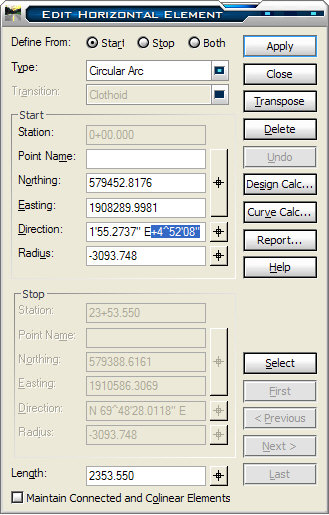
The next step is to deflect the ramp alignment by the specified 23/270
(4^52'08").
| Select InRoads>Geometry>Horizontal
Element.
In the direction field key in the deflection angle (if you get the sign
(add or subtract) incorrect, hit the Undo button and reverse the sign.
Hit Apply. |
 |
| The Curve is deflected and ready for continuation. |
 |
|