


Top Level:

How to Edit InRoads Commands

KHA-SD Help Group Policy SD Config Client Management CAD Info & Help Projects Site Map

Peer Level: Up Xin Config Plan Sharing InRoads Updates How to Edit InRoads Commands Xini Manager Xin Updates - QC Command Owners

Child Level:
Up

How to Edit InRoads Commands

If an InRoads command spits out results different from you expect or need, you can change the settings to correct the deviations.

Prior to changing settings all willy-nilly, hit the Preferences... button to make sure we don't have a suitable preference already defined for the command. 

If changes are necessary, they can be saved for future use by saving a "Command Preference."  Settings in InRoads are save as Preferences, the scope of which is limited to a command form.  Each command has its own set of preferences.

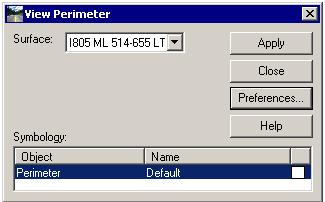
I'll use the View Perimeter command as it's one of the smallest and simplest.

Let's assume that the perimeter is showing up with the wrong color and level.  Let's assume CalTrans wants to make it pink and put it on one of their catchall buckets "22 Misc. Const. Details".


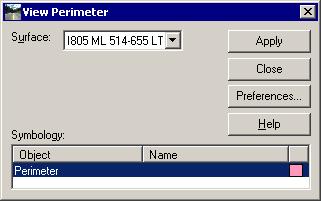
As defined to the right, the perimeter would take whatever the Line Symbology is defined for the "Default" Named Symbology.

Hit the Preferences... button.

Command Preferences

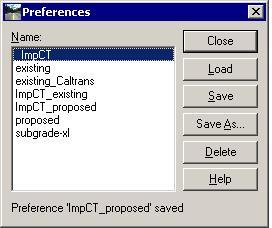
The Preference box is invoked which shows the Preferences already defined for the command.

If no suitable preference exists, Load the "closest" to your end result. 

After Loading the preference, save a New Preference using the Save As button.  Give the new Preference an intuitive, functional name.


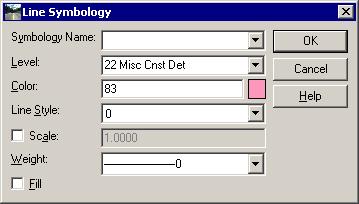
When defining symbology, when you click on an object in a command's Symbology frame, the Symbology definition form is invoked (Line, Text or Point).  The Perimeter is a Linear object, so the "Line Symbology" form is invoked.

When defining the symbology we could just select the proper values for each property.


If we were to hit the OK button and return to the View Perimeter form...


In the Symbology frame we see that the color is pink, but because we didn't use a preset symbology definition (a Named Symbology) we don't have any idea from the form where the Perimeter graphics is going to wind up.

Most commands have multiple variations that need to conform to standards.  Defining Symbology "on the fly" like this makes managing standards in InRoads nearly impossible.


The Criticality of Named Symbology

Let's assume that CalTrans changes their level standards (they did so in 2007 and will do so again in 2008).  Let's assume that you get a new client that you must conform to.

If your symbology is defined in the commands rather than in the "symbology list" that is Named Symbologies, you have to go to every instance of every object in every command in InRoads and change the symbology definition.  You essentially start from scratch. 

If you use Named Symbology exclusively in commands, you only have to change the Symbology as defined in the Named Symbology list (there is actually an Import/Export to Excel command, which really streamlines the process).  This can be done in a couple of hours and the quality is order of magnitudes better than the many-week manual method.

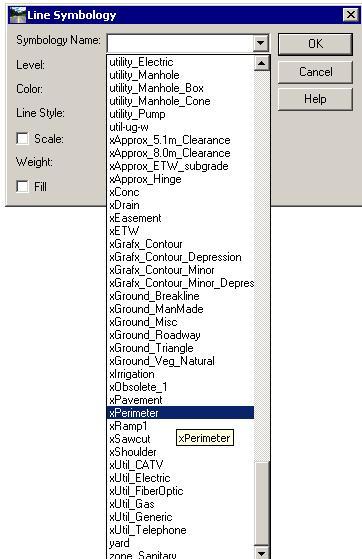
Every Symbology definition form has a "Symbology Name" list at the top.

Selecting the listbox shows the defined symbologies available for the (Line, Text or Point) type.

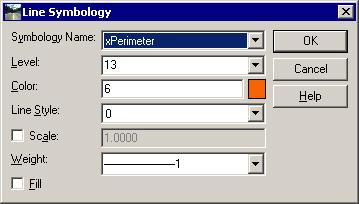
Selecting one fills in the fields:


What do you do when you select a Named Symbology that is different from the standards? 


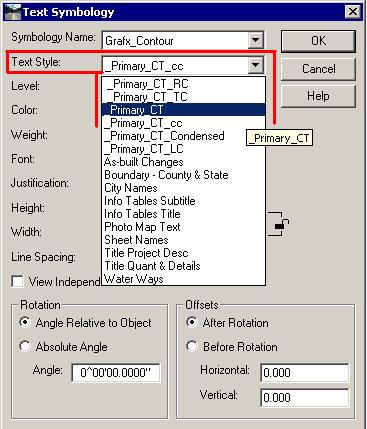
When defining Text Symbology the Named Symbology should reference a TextStyle.

TextStyles are a way to keep the dozens of text properties defined in a manageable number of Styles (similar to Word).

Once your symbology is well managed, change the other settings as needed to conform to standards.

Finally, Save your new preference. 

Share the update!

If something is worth saving use Xini Manager to extract it.

Notify your InRoads Administrator if the change should be shared throughout the enterprise.


Site Map       Contact Jeff Martin with comments/concerns.        KHA San Diego Transportation Group.                    this page last edited: 2008-01-17 16:26